


MyAccount Guide: Vacation Message
Turning on your Vacation Message
You can set up a "Out of Office/Vacation Message" to reply automatically to people who send you email while you are away or busy.
- Login to MyAccount using your email address and password.
- Click the Edit account button by the email address whose email you want to forward.
- Upon selecting the Edit Account option, the following screen is displayed:
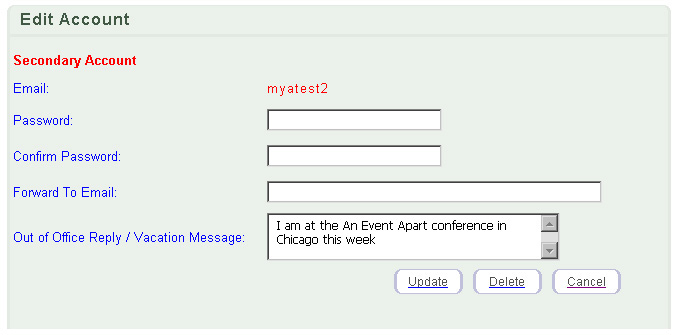
- To create a vacation message, type the message you want sent out into the text box.
- Click the Update button.
Note: When logged in with a secondary account, you will only able to edit the logged in account, and launch the WebMail interface for that account. Additionally, you will not be able to create new accounts, or delete the current account.
Return to the top of the page

|
|